

News
Press releases, news and articles from the AirSuite team
January Newsletter: Remote Configuration for AirSuite Glance LTE
Change what's on the built-in display, and enhance battery life with remote configuration.

The AirSuite newsletter is published once every 2-3 months to members of partner organisations.
Want to receive these updates directly to your inbox?
Update your subscription settings
Happy new year!
It’s been a whole year since we last sent an email newsletter about what’s new at AirSuite! It’s been an eventful 12 months for us: most notably, we’ve invested much more heavily in R&D, allowing us to explore new opportunities and strategies behind the scenes. Stay tuned for more about that soon!
But today is about what you can play with right now: remote configuration for your LTE sensors. Our team has had this one cooking for a while now! 🍲
Remote configuration allows you to set:
- How often each device reports to the Cloud
- Whether Power Saving Mode is enabled overnight or on the weekends
- What appears on the device’s built-in display
Keep reading below to learn more about how these new features work.
And we’re just getting started - we’ll be building on this in the coming months. Expect to see “advanced” power saving options for devices with weak LTE signal and low battery, and options to enable or disable different features on your devices, for even greater power saving flexibility.
Best wishes for the year ahead!
Brad and the AirSuite team
Set your own Reporting Interval & Active Hours
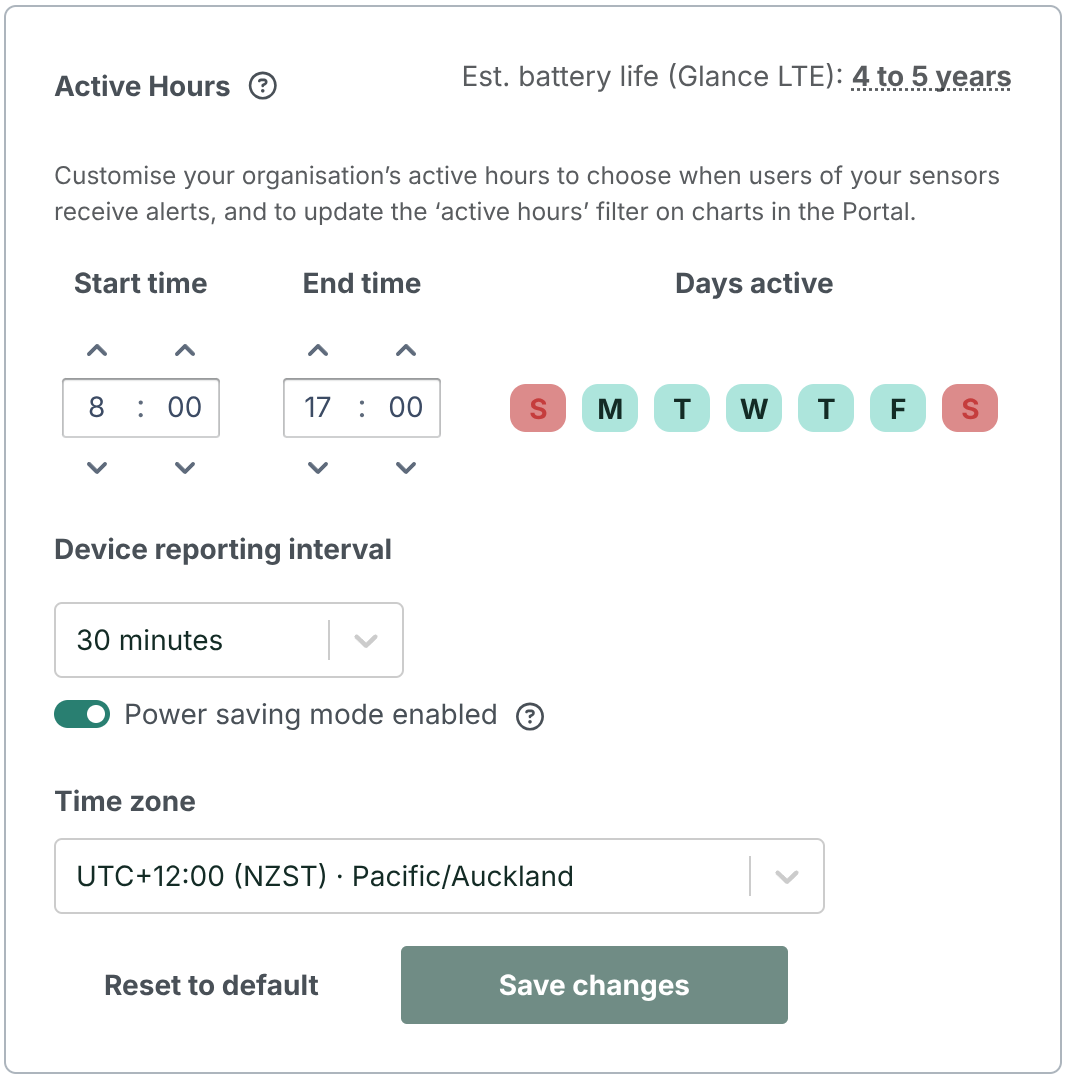
In your organisation settings, you can now set the standard Device Reporting Interval, and choose whether to enable Power Saving Mode. These settings apply to any battery-powered LTE devices within the organisation. We used to manage these settings for you, but now you have all the control!
Previously, all devices reported at a standard interval of once every 15 minutes by default (unless otherwise configured by AirSuite staff). We’ve changed the default reporting interval to 30 minutes, which should allow your batteries to last almost twice as long out of the box. If you are not interested in real-time data access, and you primarily care about analysing historic data in the Portal, we highly recommend adjusting the reporting interval to be as long as possible to achieve the greatest battery life - you can set it to be as long as 12 hours.
When you turn on Power Saving Mode, your devices will go to sleep outside your organisation’s active hours (e.g. overnight, and on the weekends). When they are asleep, they won’t connect to the network, but they will continue to take all sensor measurements at the normal rate. When they “wake up”, they will transmit all the data they collected while they were asleep. With Power Saving Mode turned on, devices can be asleep for about half their lifetime, which translates to another huge improvement in battery life.
Note: New accounts will be able to use these settings straight away, but if we’ve managed your devices’ power saving settings before, the settings we’ve applied will take precedence, so changes you make here may not take effect immediately. Please bear with us while we migrate all devices to this new system.
Configure what’s on the AirSuite Glance display
Don’t like what you see? The power is once again in your hands.
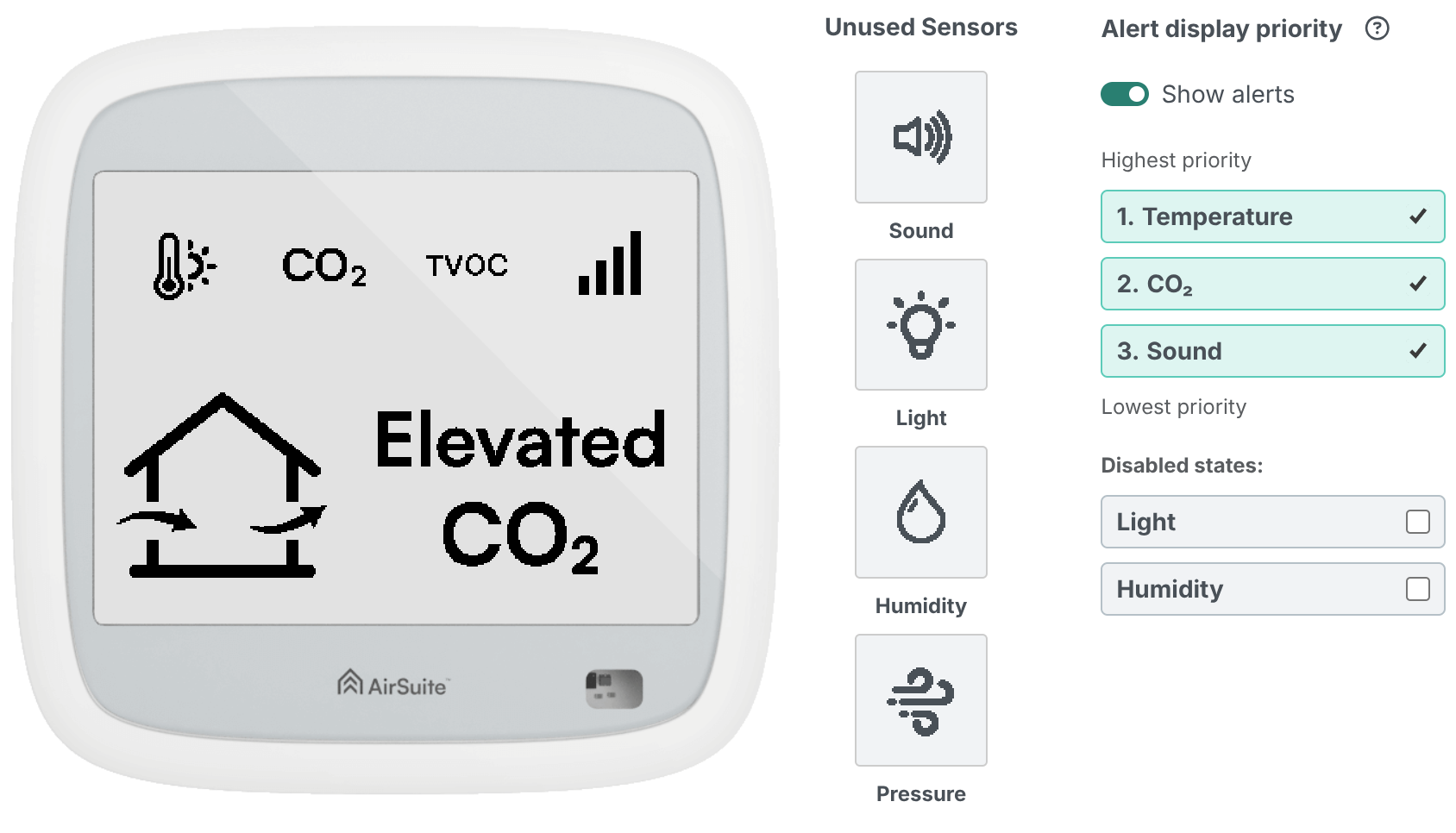
We’ve tried to think of everything you could possibly want to do with the screen on AirSuite Glance.
- Want to see different sensors, like VOCs? No problem.
- Don’t want to see the alerts? No problem - you can choose which ones you want, or you can just replace them with more sensor data.
- Don’t want to see… anything at all? No problem! Switch to “logo only” mode to replace everything with the AirSuite logo if you want.
When you apply custom display settings, the alerts on the screen will also be triggered based on your organisation’s alert thresholds: for example, if you’ve adjusted your upper temperature threshold to 27°C, the “Hot” alert will only display when the temperature is above that level, instead of when it is above 25°C (the previous default).
Note: Your devices’ firmware needs to be up-to-date for this feature to work. Firmware updates are rolling out gradually (in stages) to compatible devices this month. If we’ve applied custom firmware for your organisation’s devices in the past, your devices may not be eligible for this update - please contact us for more information.
In case you missed it…
We’ve made lots of little changes over the last year you may or may not have seen. Here are some of the key ones we wanted to highlight:
- A new Compliance section, starting with the NABERS Calculator. Built for the Australian market, this new calculator automatically aggregates data from the devices in your building so that you can estimate your NABERS Indoor Environment star rating.
- Multi-language support! Starting with Korean, you can now use the Portal in more than just English. If we support it, your preferred language is detected automatically. Watch this space as we continue to expand our presence outside of New Zealand.
- Continued improvements to our monthly/weekly summary reports, including charts, rankings, and comparisons with regional medians. Most recently, we’ve made the AI summary smarter: it now knows about any custom events you’ve recorded during the period, and it should now repeat itself less often, as it now takes into account what it said last time.
Thanks for sticking with us this past year. We’ve got some big plans for 2026, and we hope to continue to wow you in the coming months 😎
Best regards,
Brad and the AirSuite team
2026
- Managing Energy with AirSuite & Re.Flex
- January Newsletter: Remote Configuration for AirSuite Glance LTE
2025
2024
- September Newsletter: The Control Room, Rankings, Insights and Alerts 🚨
- Media Release: AirSuite and Jani-King join forces to build wellness in New Zealand businesses
- June Newsletter: Is your organisation running at peak efficiency? 🏃
- April Newsletter: Easter treats from the AirSuite team 🐰
- Nordic cellular connectivity a game-changer for IAQ monitoring
- What's AirSuite doing to keep your data and sensors secure?
2023
Ready when you are
Let’s talk about how AirSuite™ can deliver real indoor outcomes for your organisation today